Syntax highlighting is the art of formatting text. For a coding blog like this it is formatting “code” to be presentable in a common style where characters are spaced evenly and the notable keywords of the language are highlighted.
WordPress has a basic builtin Code block and also many available plugins.
This post will concentrate on the following
- Code – builtin style
- SyntaxHighlighter Evolved – a plugin
- Code Block Pro – a plugin
To demonstrate I have used the same piece of VB code “Dim iLoop As Integer”
The following screen shots show the differentpresentations
Code – BuiltIn

A simple no frills output with basic spacing.
Syntax Highlighter Evolved – a plugin

A slightly better view where the keywords are highlighted.
Code Block Pro – a plugin

Now we have keyword highlighting plus the language and an option to copy the code snippet.
In my view, Code Block Pro is going to meet my needs for this blog.
Getting Access to the Syntax Highlighters
Code – BuiltIn
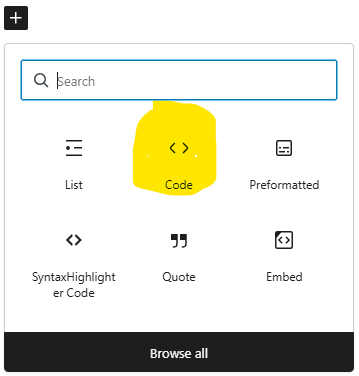
Dim iLoop As integerSyntaxHighlighter Evolved – Plugin
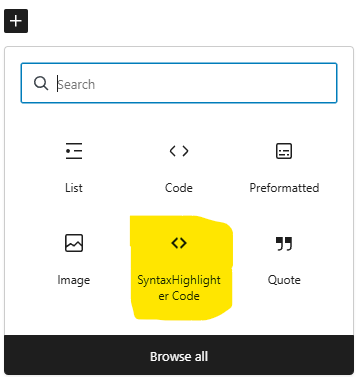
Dim iLoop As Integer
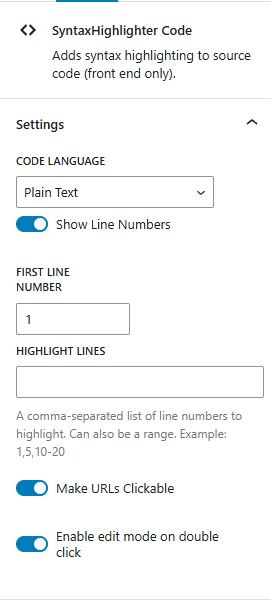
Code Block Pro
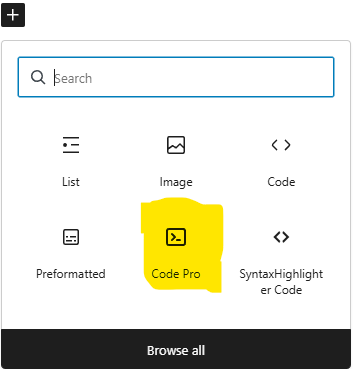
Another highlighter I found was Code Block Pro, which gives a lot more flexibility and also provides the ability to copy the code.
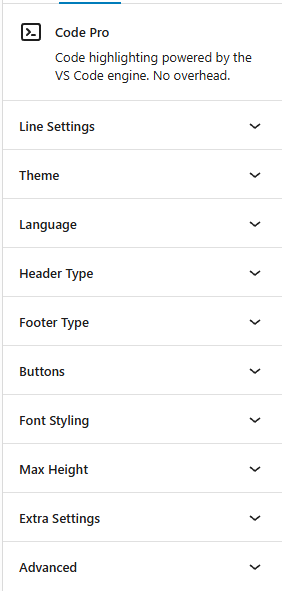
Dim iLoop As IntegerCode Block Pro offers a wide variety of options
Quick Shortcuts
Using the mouse and keyboard for picking the block type can be slow, to improve the speed of creating your post consider getting to know a few key shortcuts.
When editing a post, type “/” and then start typing the name of the block type and then press “enter” eg
Examples
/title
/heading
/paragraph
/code
Note, you do not need to type the full text, for example you can type “/hea” + enter. This will place you inside a heading block.
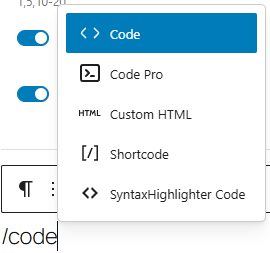
Get to know which blocks you are using and then start trying the shortcuts, you will soon be creating posts in minutes.